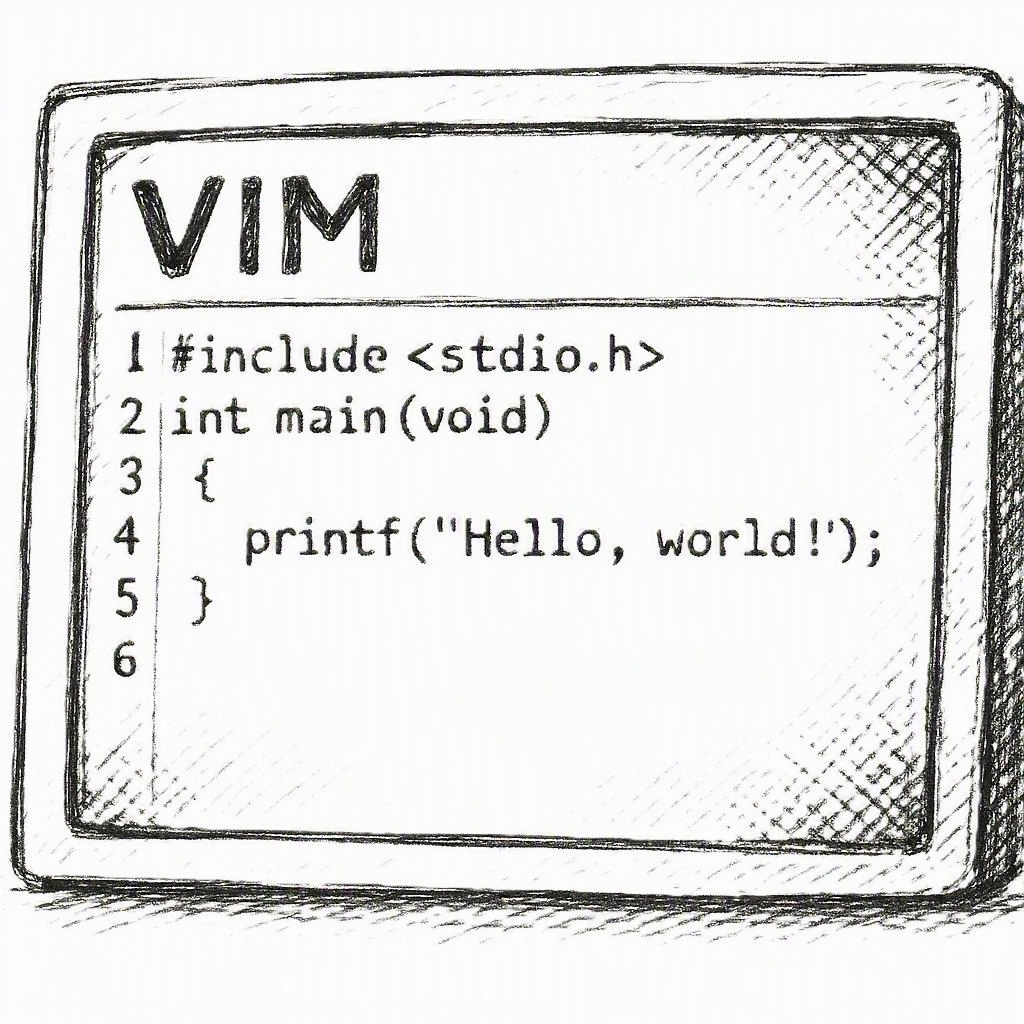
Learning Vim
Vim is a modal text editor, which means the same keys do different things depending on the mode you are in. It becomes powerful once you learn its core ideas: motion, text objects, registers, marks, buffers, windows, and substitution.
The main modes
- Normal mode: the default mode for movement and editing.
- Insert mode: where you type text.
- Visual mode: for selecting text.
- Command-line mode: for commands such as
:w,:q, and:s.
A good habit is to press Esc often to return to Normal mode.
Start here
- Press
ito enter Insert mode before the cursor. - Press
ato enter Insert mode after the cursor. - Press
oto open a new line below and start typing. - Press
Escto return to Normal mode. - Press
:to enter command-line mode.
Basic motion
hleftjdownkuplrightwjump to the next wordbjump to the previous wordejump to the end of the current word0start of line$end of lineggstart of fileGend of file)jump to the next sentence(jump to the previous sentence}jump to the next paragraph{jump to the previous paragraph[[jump to the previous section]]jump to the next section
Text objects and useful edits
These are some of the most important Vim commands because they let you target chunks of text precisely.
dwdelete from the cursor to the end of the current worddiwdelete inner word: delete the word under the cursor without the surrounding whitespacedawdelete a word: delete the word and the surrounding whitespacecischange inner sentencecaschange a sentencecipchange inner paragraphcapchange a paragraphciwchange inner wordcawchange a worddddelete the whole lineyycopy a lineppaste after the cursorPpaste before the cursorxdelete the character under the cursoruundoCtrl+rredo
Visual mode
Visual mode is for selecting text before acting on it.
vstart character-wise visual selectionVstart line-wise visual selectionCtrl+vstart block-wise visual selectionddelete the selectionyyank the selectioncchange the selection
You can combine visual mode with motions and text objects to make very targeted edits.
Find and search
/termsearch forward?termsearch backwardnnext matchNprevious matchffind the next character on the current lineFfind the previous character on the current linetmove to just before the next characterTmove to just after the previous charactersdelete the character under the cursor and enter Insert modeSdelete the current line and enter Insert mode;repeat the lastf/tmotion,repeat in reverse
Example: fa jumps to the next a on the current line.
Substitution
Substitution replaces text pattern-by-pattern.
:s/old/new/replace the first match on the current line:s/old/new/greplace all matches on the current line:%s/old/new/greplace all matches in the whole file:%s/old/new/gcconfirm each replacement
You can also use more advanced patterns such as :s/\s\+/ /g to collapse repeated whitespace.
Buffers, windows, and tabs
Vim works well with multiple open files and views.
:e file.txtopen a file in a buffer:bnextgo to the next buffer:bprevgo to the previous buffer:lslist buffers:bdclose the current buffer:splitsplit the window horizontally:vsplitsplit the window verticallyCtrl+wthenh/j/k/lmove between windowsCtrl+wthencclose the current window:tabnewopen a new tabgtgo to the next tabgTgo to the previous tab
Marks and registers
m[a-z]set a mark`ajump to marka:markslist marks"ayyank into registera"appaste from registera:regshow registers"+ycopy to the system clipboard"+ppaste from the system clipboard
Registers are extremely useful for moving text around without losing anything.
Macros
Macros let you record a sequence of edits and replay it later.
q{register}start recording a macro into the chosen registerqstop recording@{register}replay the macro once@@replay the last macro again:reginspect your registers"ay$yank the current line into registera"appaste the contents of registera
Updating a macro
A macro is just a sequence of Normal-mode commands stored in a register. You can update it by editing the register contents directly.
- Record a macro into register
awithqa...q. - Paste its contents with
"ap. - Edit the pasted text in Insert mode or Normal mode.
- Yank the updated commands back into the same register with
"ay$.
This is useful when you want to append to an existing macro or refine it without re-recording everything from scratch.
Appending to a macro
To add more commands to an existing macro register, record into the same register with a capital letter:
qAstarts recording and appends to registeraqstops recording
This appends to the existing macro instead of overwriting it.
.vimrc settings and useful mappings
A small .vimrc can make Vim feel much more approachable.
" Basic behaviour
set number
set relativenumber
set tabstop=4
set shiftwidth=4
set expandtab
set smartindent
set ignorecase
set smartcase
set hlsearch
set incsearch
set mouse=a

" Make escaping easier
inoremap jk <Esc>

" Quickly save and quit
nnoremap <leader>w :w<CR>
nnoremap <leader>q :q<CR>
nnoremap <leader>x :wq<CR>

" Better split navigation
nnoremap <C-h> <C-w>h
nnoremap <C-j> <C-w>j
nnoremap <C-k> <C-w>k
nnoremap <C-l> <C-w>l

" Keep search centered
nnoremap n nzz
nnoremap N Nzz
Common options explained:
set numberandset relativenumbershow line numbers.set tabstop=4andset shiftwidth=4make indentation more predictable.set expandtabuses spaces instead of tabs.set ignorecaseandset smartcasemake searches less annoying.set hlsearchandset incsearchhighlight and show matches as you type.inoremap jk <Esc>lets you leave Insert mode faster.
Save, quit, and file commands
:wsave the file:qquit Vim:wqsave and quit:q!quit without saving:w newname.txtsave as a new file
Quick cheat sheet
| Action | Shortcut |
|---|---|
| Enter Insert mode before cursor | i |
| Enter Insert mode after cursor | a |
| Open a line below | o |
| Return to Normal mode | Esc |
| Move left/down/up/right | h/j/k/l |
| Move to next word | w |
| Move to previous word | b |
| Move to next sentence | ) |
| Move to previous sentence | ( |
| Move to next paragraph | } |
| Move to previous paragraph | { |
| Jump to next character | f |
| Jump to previous character | F |
| Delete character and enter Insert mode | s |
| Search forward | /term |
| Search backward | ?term |
| Next match | n |
| Delete word | dw |
| Delete inner word | diw |
| Delete a word including surrounding whitespace | daw |
| Delete line | dd |
| Copy line | yy |
| Paste | p |
| Undo | u |
| Redo | Ctrl+r |
| Start visual selection | v |
| Start line visual selection | V |
| Start block visual selection | Ctrl+v |
| Substitute on current line | :s/old/new/ |
| Substitute globally | :%s/old/new/g |
| Start recording macro | q{register} |
| Stop recording macro | q |
| Replay macro | @{register} |
| Replay last macro | @@ |
| Append to macro | qA |
| Paste register contents | "ap |
| Yank to register | "ay |
| Save | :w |
| Quit | :q |
| Save and quit | :wq |
A practical workflow
- Open a file in Vim.
- Move with
h/j/k/lorw/b/e. - Use
f/Fto jump to important characters quickly. - Select text with
vand edit it. - Use
dw,diw, ordawto remove words precisely. - Use
)and(for sentence-level movement, and{/}for paragraph-level movement. - Search with
/and replace with:sor:%s. - Split windows with
:splitor:vsplitwhen working across files.
That is enough to get started, but the real power of Vim comes from combining motions, text objects, and commands until they feel natural.